
Add a domain to your Shared Hosting account
To add a domain to your shared hosting account, follow these steps:
1. Log in to your cPanel account.
Here’s how you can login to cPanel in Shared Hosting
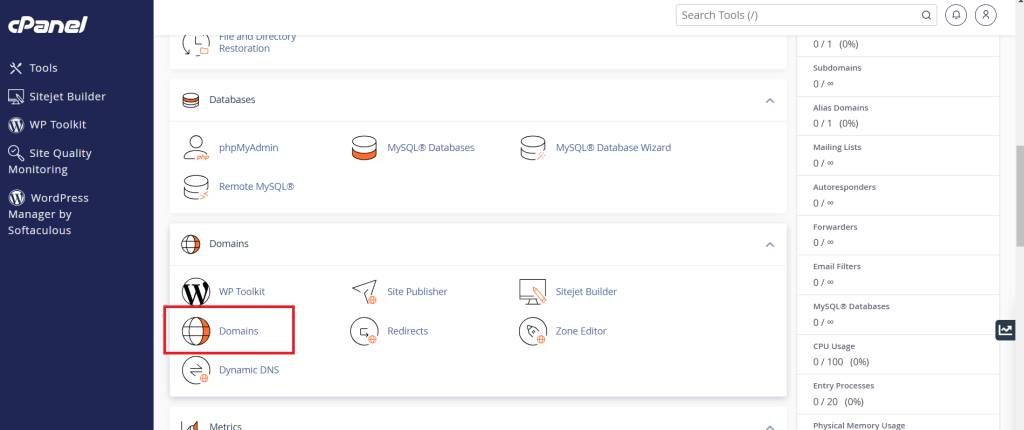
2. In the “Domains” section, look for the “Domains” option and click on it.
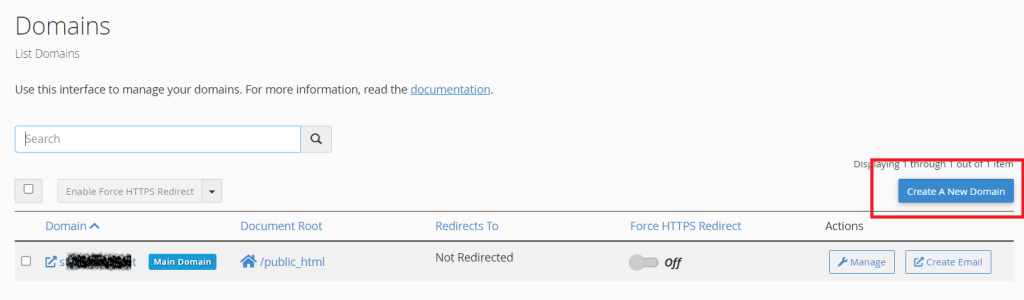
3. Once you are on the domain page, click ‘Create A New Domain’
4. Next, enter the new domain you want to add
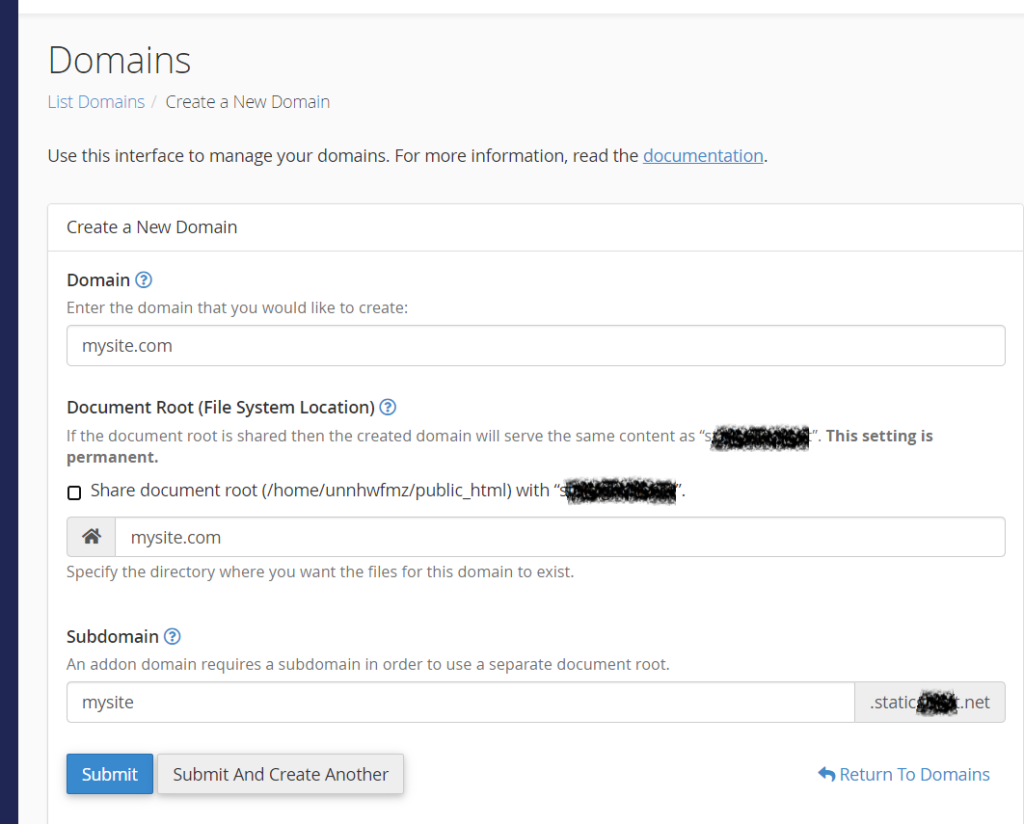
5. Next, enter the domain name, untick the ‘share document root’ option then specify the directory and subdomain like in the image above.
6. Click on Submit.
The new domain will be added successfully to your shared hosting account. Please ensure that you have updated the domain DNS records to point to Ultahost’s nameservers, especially if your domain registrar is different.